







Restore a photo
Choose what to repair and what to keep.
App · uses credits to generate
 Social mediaYouTube, TikTok, Reels and Instagram9
 Marketing & adsProducts, ads and brand14
 Business by sectorRestaurants, beauty, real estate…64
 OccasionsBirthdays, weddings, quinceañeras…51
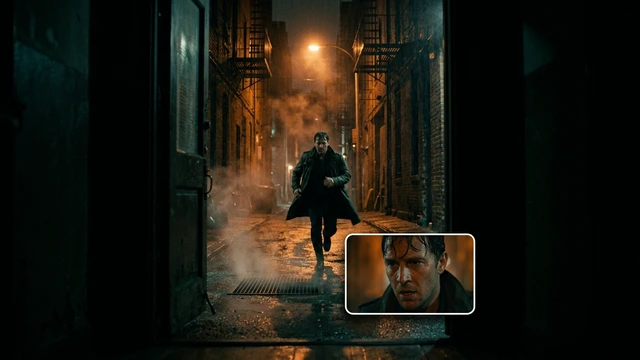 Film & videoScenes, shots and storyboards10
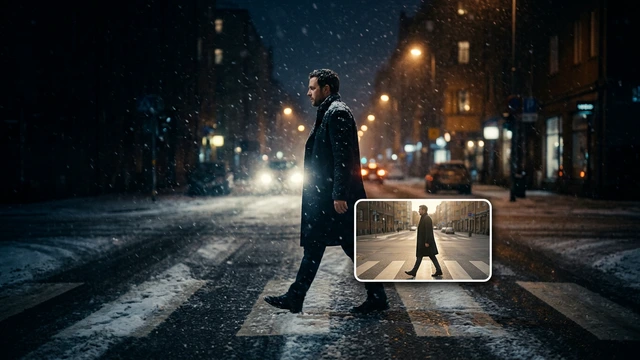 Edit videoWeather, light, background, style · Beta8
 Design & photoEdit, retouch and expand18
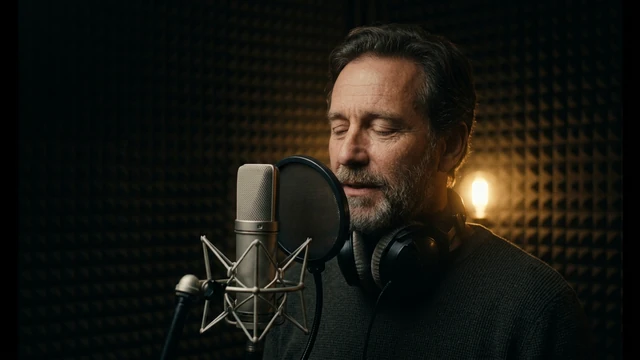 Voice & audioVoice-overs, radio spots, stories3
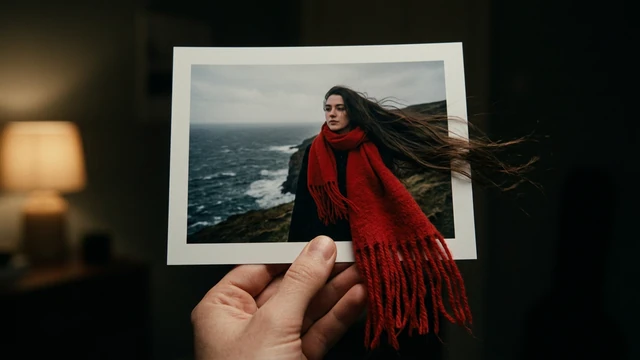 TrendingViral effects with your photo or video5
GUIDE · PHOTOS AND IMAGES
Scan or photograph the old photo, crop it with the free Crop image tool and upload it to the Restore a photo App. Choose what you want repaired, check the cost and generate; always compare the result with the original.
Open the App Restore a photoOpening it is free. Generating uses credits; you see the cost first.
STEP BY STEP
Scan it or photograph it straight on, with even light and no reflections.
Upload the photo and choose what to repair: scratches, stains, blurry areas or colour.
See the credit cost and generate. Compare faces and details with the original.
BEFORE YOU START
TOOLS IN THIS GUIDE
Choose what to repair and what to keep.
App · uses credits to generate
Free crop or 1:1, 4:5, 9:16, 16:9 and 3:2.
Free tool · on your device
B&W, sepia, brightness and contrast.
Free tool · on your device
TIPS
Always keep the untouched original scan.
AI rebuilds what is missing: check that faces still look like the person.
For a classic finish, turn it black and white or sepia with the free Black and white tool.
AI repairs and rebuilds details, so some features may change. Compare the result and keep the original as a reference.
You can ask for it when choosing what to repair. The colour is the model’s interpretation, not the real colour of the time.
The App works in 4:3, the usual proportion of paper photos.
Opening the Apps, templates and the Studio is free. Generating requires a verified account and credits; Free includes no credits, but you can buy a top-up without a subscription. The cost is shown before you confirm, and credits never expire.
Change the weatherBeta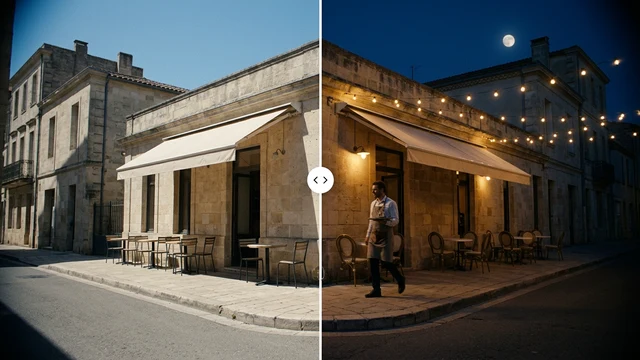 Change the time of dayBeta
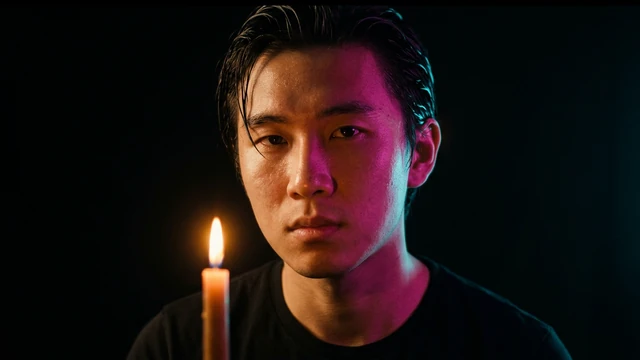 Change the lightingBeta
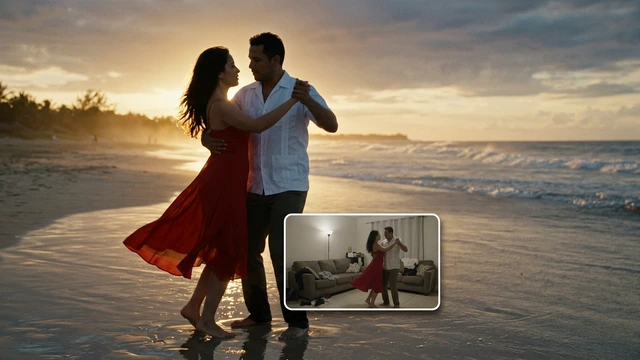 Change the video backgroundBeta
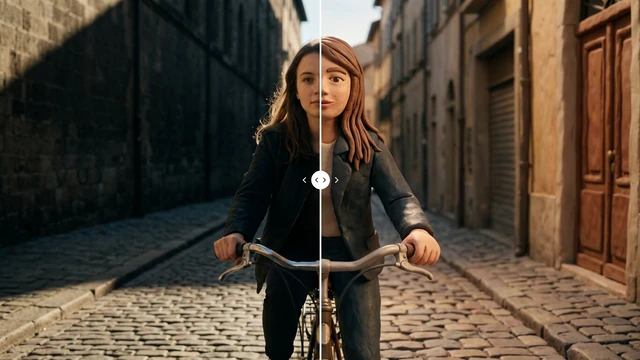 Restyle a videoBeta