



Product shot
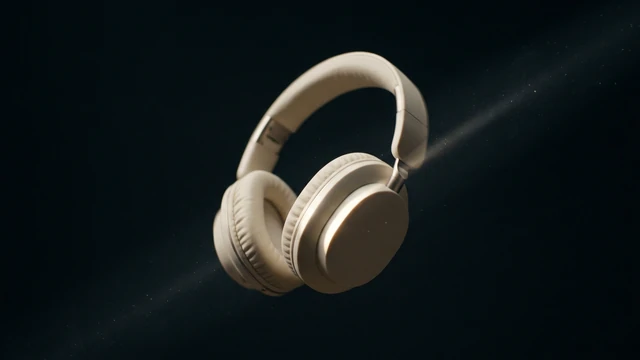
Your product in a professional setting.
App · uses credits to generate
 Social mediaYouTube, TikTok, Reels and Instagram9
 Marketing & adsProducts, ads and brand14
 Business by sectorRestaurants, beauty, real estate…64
 OccasionsBirthdays, weddings, quinceañeras…51
 Film & videoScenes, shots and storyboards10
 Edit videoWeather, light, background, style · Beta8
 Design & photoEdit, retouch and expand18
 Voice & audioVoice-overs, radio spots, stories3
 TrendingViral effects with your photo or video5
GUIDE · PHOTOS AND IMAGES
Take a clear photo of your product with your phone and upload it to the Product photo App to place it in a scene with the lighting you choose, or to White background for shops for your catalogue. Check the cost before generating and compress the images for your site.
Open the App Product shotOpening it is free. Generating uses credits; you see the cost first.
STEP BY STEP
Whole product, straight on, with window light and a plain background. No professional camera needed.
Product photo (scene and light), White background for shops (catalogue) or Your product in someone’s hands.
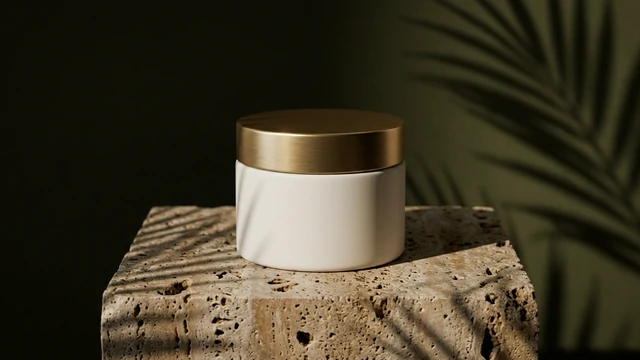
“On a wooden table with plants”, “in a light marble bathroom”. Choose the lighting.
Check the credit cost, generate and make sure labels and colours match the real product.
Compress image reduces the file size without changing the look, so your shop loads fast.
BEFORE YOU START
TOOLS IN THIS GUIDE
Your product in a professional setting.
App · uses credits to generate
Your product ready for Amazon or your site.
App · uses credits to generate
A person invented by the AI uses your product in a real place.
App · uses credits to generate
Up to 50 photos on a white background.
Free tool · on your device
Make JPG, PNG and WebP files smaller.
Free tool · on your device
TIPS
Use the same scene and light for a whole collection: the shop looks tidy.
Show the product as it is: customers should get what they see.
Keep the original photo in case your shop asks for it unedited.
No. A sharp phone photo with good light is enough as a base.
The Apps start from your photo and ask to keep the product, but check details such as logos, text and colours before publishing.
Product photo and White background work in square 1:1, common in shops and marketplaces.
Opening the Apps, templates and the Studio is free. Generating requires a verified account and credits; Free includes no credits, but you can buy a top-up without a subscription. The cost is shown before you confirm, and credits never expire.
Change the weatherBeta Change the time of dayBeta
 Change the lightingBeta
 Change the video backgroundBeta
 Restyle a videoBeta