



Auto subtitles
Speech to text, SRT, VTT and animated styles.
Free tool · on your device
 Social mediaYouTube, TikTok, Reels and Instagram9
 Marketing & adsProducts, ads and brand14
 Business by sectorRestaurants, beauty, real estate…64
 OccasionsBirthdays, weddings, quinceañeras…51
 Film & videoScenes, shots and storyboards10
 Edit videoWeather, light, background, style · Beta8
 Design & photoEdit, retouch and expand18
 Voice & audioVoice-overs, radio spots, stories3
 TrendingViral effects with your photo or video5
GUIDE · VIDEO
In Auto subtitles, choose “Your device · free”, add a clip with speech up to 3 minutes long and press “Transcribe”. Correct the cards before downloading SRT or VTT, or creating a video copy with burned-in text. A free account is required; local mode is free for 30 welcome uses per account, then costs 1 credit per use.
Open Auto subtitlesFree with an account, no subscription or watermark. Your files never leave your device.
STEP BY STEP
Keep the original. If it exceeds 3 minutes, trim the section you want to caption; check that it retains the complete sentence. For audio, use MP3 cutter and ringtone maker.
Open Auto subtitles, confirm your account and add a playable video or audio file up to 300 MB. Choose the language and “Your device · free”; press “Transcribe”. The local model downloads on first use.
Play the clip and check names, numbers and pauses. Edit text and timings; use “Merge” or “Split” to make it easier to read. Transcription can make mistakes.
SRT and VTT store text and timings separately. To make text part of the picture, select a style, position and size and tick “Also create the video with the subtitles”.
Press “Create SRT and VTT” or “Create video with subtitles”, depending on the available option. Review the complete result before publishing. Use the converter if you need another subtitle format.
TOOLS IN THIS GUIDE
Speech to text, SRT, VTT and animated styles.
Free tool · on your device
Keep only the part you want.
Free tool · on your device
Cut with the waveform in view, make ringtones.
Free tool · on your device
Convert existing subtitles without choosing a video.
Free tool · on your device
TIPS
Keep the corrected SRT or VTT: you can import it again without repeating transcription.
Check that text does not cover faces or buttons and remains readable without sound.
No. Add the media and press “Import SRT or VTT”; you can also use “Type by hand”. Check timings against the clip.
Creating the video requires compatible WebCodecs. SRT and VTT remain available. The copy with burned-in text is re-encoded up to 1080p and may lose detail.
In “Your device · free”, transcription runs locally. The model downloads and your session is checked. This guide does not use the transcription option that costs credits.
Yes. The free tools in this guide run in your browser and add no watermark. Tools that create files share the 30 welcome uses of your free account, then cost 1 credit per use; tools that show the result on screen have no usage cap. You can try them before signing up; to download the result or keep using them we ask for a free account, with no subscription.
Change the weatherBeta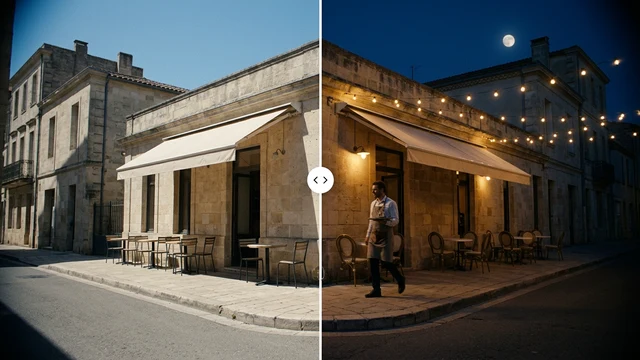 Change the time of dayBeta
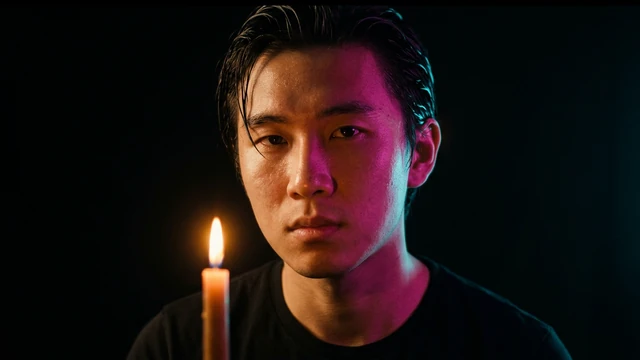 Change the lightingBeta
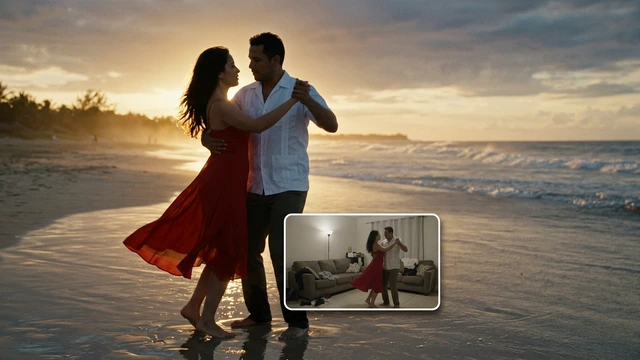 Change the video backgroundBeta
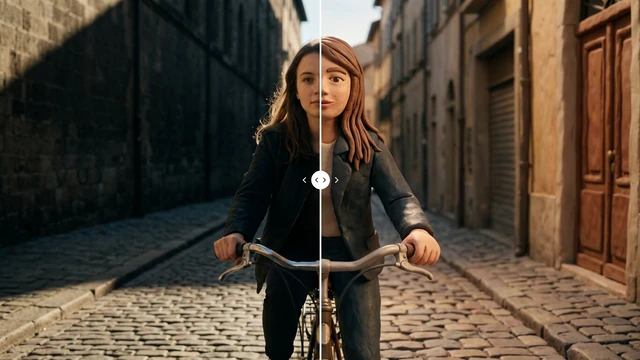 Restyle a videoBeta