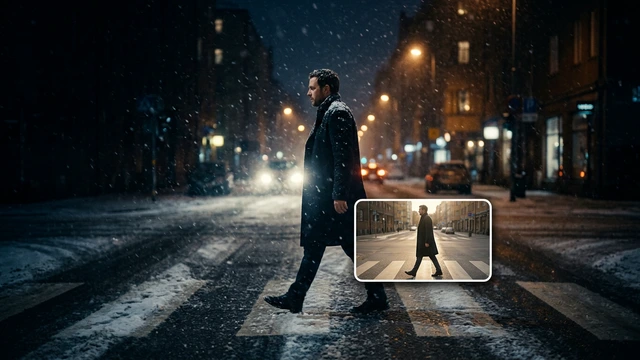
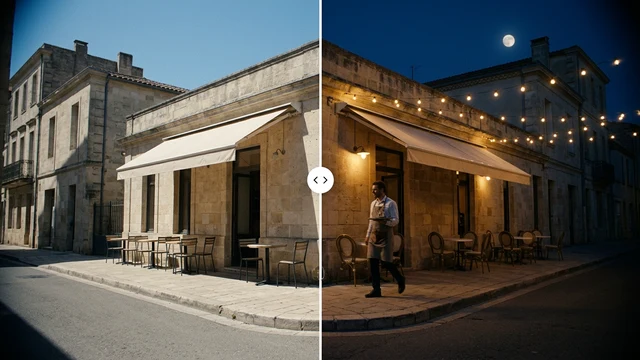
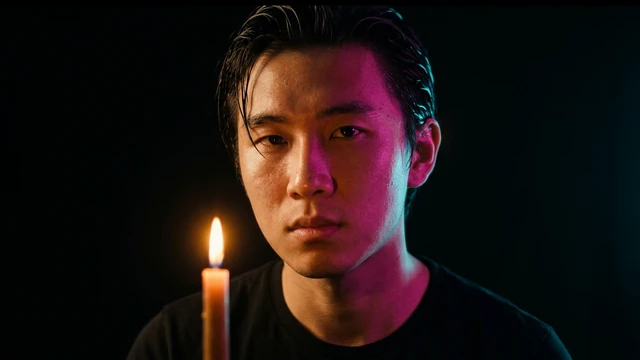
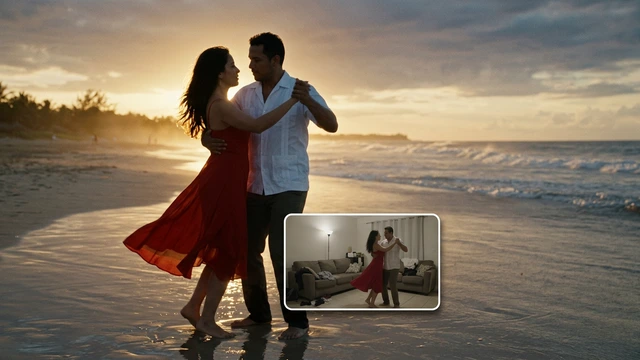
You can open Veo 3.1 in Cocuyo and prepare a scene before starting generation. The Veo 3 free search does not imply free videos: generating requires an account and credits, and Free includes no credits. This guide opens Fast. Write one specific action and sound, review settings and check the cost before confirming.
Opening the Studio is free. Generating requires an account and credits; review the cost before confirming.
Cocuyo selector data
Developer
Google
Versions
Veo 3.1 Fast · Veo 3.1 Quality
Resolution
720p · 1080p
Formats
16:9 · 9:16
Duration
4 / 6 / 8 s
References
Images: 3 · Frames: 2
Reviewed on 2026-10-26
Step by step
1. Cocuyo selector data
Start by deciding what you need before opening the Studio. Note the subject, purpose and intended context: a presentation asset calls for different choices from an exploratory draft. Keep the information that helps communicate that intention. A model name identifies the tool, but it does not replace a concrete description of the content. Read the technical details on this page, then check the settings of the selected version. Options belonging to one model family do not automatically carry over to another.
2. The prompt formula
Give your first trial a simple goal that you can evaluate. Describe one main action or idea, avoid conflicting requests, and separate the content you want from stylistic instructions. If you use your own reference material, check that it matches an input type accepted by the selector. Do not assume that a link, a file name or a written reference is equivalent to uploading that material. Check the files and your permission to use them before adding them to a shared project.
3. Suggested settings
In the Studio, choose the mode and model version first. Review the fields available for that combination and keep a copy of your instructions. Opening this guide or the Studio does not start a creation. Before confirming, check that your model is still selected, the required inputs are complete and the settings match your goal. Visible controls are the practical reference for this integration: a feature described by the manufacturer may belong to a different product or input mode.
4. Review
Review the whole result before using it. Check the content, consistency and details that matter to your project, as well as the overall impression. If something goes wrong, change one instruction or setting at a time and compare it with the previous attempt. This helps distinguish a useful improvement from an incidental variation. Save the original text together with the model version and settings. An example provides a starting point; it does not guarantee that every run will reproduce exactly the same content.
A concrete subject and one main action reduce ambiguity in the request.
Action
A concrete subject and one main action reduce ambiguity in the request.
Setting
The setting and lighting establish a scene without combining incompatible ideas.
Camera
One camera or framing instruction makes the composition easier to assess.
Lighting
The setting and lighting establish a scene without combining incompatible ideas.
Style
Separating the subject from the background helps you check each part of the result.
Sound
Distinguishing what stays from what changes makes comparisons between attempts more useful.
What you can explore for free
1. Prepare a scene without running it
A paper lantern hangs above a wooden bench in a quiet garden. A light breeze moves the lantern slightly while the bench stays still. Fixed wide shot at dusk, soft leaf rustle and distant birds, no music or cuts.
Suggested settings: 720p · 16:9 · 8 s
Why it helps: It can be written and reviewed before confirming a creation; generating the clip requires an account and credits.
A plain ceramic cup rests on a table beside an open window. The camera slowly pushes in while a thin stream of steam rises. Soft morning light, quiet room tone and birds outside the window. No dialogue, no cut and no additional objects.
Suggested settings: 720p · 16:9 · 8 s
Why it helps: It specifies camera and ambience in text, without presenting an audio upload that Veo does not accept in this workflow.
A compact reading room contains a low bookcase, a fabric armchair and a small round table. Afternoon light falls across the floor from one tall window. Keep furniture proportions believable and the walking space clear. Use a wide composition with natural materials and a quiet, lived-in atmosphere. A curtain moves gently while the camera slowly reveals the room.
Suggested settings: 720p · 16:9 · 8 s
Why it helps: Separating the subject from the background helps you check each part of the result.
A narrow footpath crosses a meadow toward a distant hill at sunrise. Fine mist stays close to the grass while the hill remains visible. Use a wide composition with the path leading through the frame. Keep the horizon level, the light soft and the colours consistent with early morning. Mist drifts across the grass; keep the camera fixed.
Suggested settings: 720p · 16:9 · 8 s
Why it helps: The setting and lighting establish a scene without combining incompatible ideas.
A close view shows water droplets resting on a dark green leaf. Keep one central droplet in focus and the surrounding veins easy to recognise. Light enters from the side and produces a small highlight without bleaching the leaf. Separate the background with shallow depth and a simple composition. One droplet slowly runs down the leaf while the macro camera stays fixed.
Suggested settings: 720p · 16:9 · 8 s
Why it helps: Separating the subject from the background helps you check each part of the result.
A fictional adult explorer wears a mustard raincoat, dark boots and a small canvas backpack. The explorer pauses beside a stone bridge and looks toward a forest path. Preserve the coat, backpack and hairstyle as identifying details. Use soft morning light and avoid introducing additional characters into the composition. The explorer turns toward the path and takes one careful step.
Suggested settings: 720p · 16:9 · 8 s
Why it helps: Distinguishing what stays from what changes makes comparisons between attempts more useful.
A cyclist wearing a plain blue jacket moves steadily along an empty riverside path. Keep the bicycle proportions coherent and the rider fully inside the composition. Show the river as a quiet background with a few trees. Use gentle daylight and describe one continuous movement without a sudden change of location. Track the cyclist steadily from the side without sudden cuts.
Suggested settings: 720p · 16:9 · 8 s
Why it helps: One camera or framing instruction makes the composition easier to assess.
A folded linen cloth lies beside a smooth stone and a small unfinished wooden bowl. Make the weave, grain and stone surface distinguishable without exaggerating their texture. Use soft light from a large window and a simple overhead composition. Keep the background neutral and leave clear space around each object. A soft breeze moves one edge of the linen; keep the bowl and stone still.
Suggested settings: 720p · 16:9 · 8 s
Why it helps: Separating the subject from the background helps you check each part of the result.
A simple cream greeting card stands on a plain desk next to a small yellow flower. The card contains only the words "Good morning" in large dark lettering. Keep the words on one line with generous margins. Use a straight, readable view and soft daylight without extra signs or captions. Move the camera slowly toward the card while keeping the lettering unchanged.
Suggested settings: 720p · 16:9 · 8 s
Why it helps: Short quoted text lets you check whether the output contains the requested words.
A quiet pedestrian street has pale plaster walls, a wooden bench and two small trees in planters. An adult carrying a canvas bag walks through the middle distance. Use an eye-level composition with consistent building proportions. Keep the light soft and the scene calm, with no readable shop signs. Follow the walking person in one continuous shot.
Suggested settings: 720p · 16:9 · 8 s
Why it helps: One camera or framing instruction makes the composition easier to assess.
A small red wooden toy boat rests on a blue fabric surface near a window. Warm late-afternoon light makes a long soft shadow to the right. Preserve the boat silhouette and the fabric folds. Use a simple close composition, natural colours and enough negative space to see the shadow clearly. Let a soft reflection move across the toy boat without moving its shape.
Suggested settings: 720p · 16:9 · 8 s
Why it helps: The setting and lighting establish a scene without combining incompatible ideas.
An adult prepares a small breakfast at a tidy kitchen counter, placing a slice of bread on a plate beside a glass of water. Keep the hands, plate and glass visible in one composition. Use gentle morning light and ordinary materials. Show a single clear action without adding decorative objects. Show the bread being placed on the plate in one continuous close shot.
Suggested settings: 720p · 16:9 · 8 s
Why it helps: A concrete subject and one main action reduce ambiguity in the request.
Before handing over an asset, check names, visible text, pronunciation where relevant and any detail that could mislead an audience. Verify important claims against your own sources and confirm your rights to the input material.
A concrete subject and one main action reduce ambiguity in the request.
The setting and lighting establish a scene without combining incompatible ideas.
Separating the subject from the background helps you check each part of the result.
One camera or framing instruction makes the composition easier to assess.
Short quoted text lets you check whether the output contains the requested words.
Distinguishing what stays from what changes makes comparisons between attempts more useful.
When to choose another model
Distinguishing what stays from what changes makes comparisons between attempts more useful.
Opening the Studio and preparing your text is free. Generating requires an account and credits; the Free plan does not include credits. You see the cost before confirming.
Does the button start a free video?
No. The button opens Veo 3.1 Fast to prepare a creation. Generating requires an account and credits; check the cost before confirming.
How do I prepare an attempt without generating it yet?
Write the subject, action, camera and sound. Decide whether to use images and check format, duration and resolution; preparing text is not the same as running the model.
Can I upload an audio track to Veo 3.1 Fast?
The reviewed entry includes no audio or video references. Describe sound in text and review the result; do not present this workflow as dubbing an existing recording.