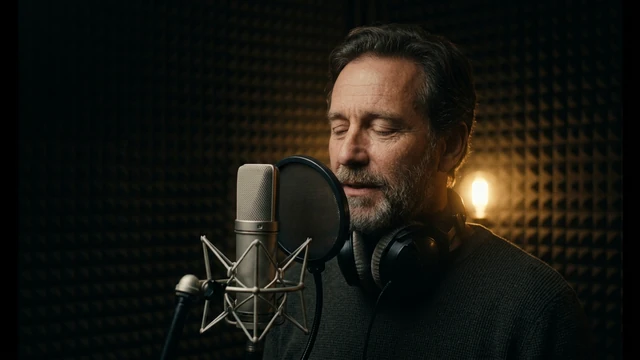
To use ElevenLabs in Cocuyo, open Voice mode, select Multilingual v2 and enter the words you want spoken. The text field contains your script, rather than camera directions or a description of the voice. Check the available voice, punctuation and pronunciation before using the narration.
Write the words to be spoken and check punctuation and pronunciation; choose voice options in the controls.
Step by step
1. Cocuyo selector data
Start by deciding what you need before opening the Studio. Note the subject, purpose and intended context: a presentation asset calls for different choices from an exploratory draft. Keep the information that helps communicate that intention. A model name identifies the tool, but it does not replace a concrete description of the content. Read the technical details on this page, then check the settings of the selected version. Options belonging to one model family do not automatically carry over to another.
2. The prompt formula
Give your first trial a simple goal that you can evaluate. Describe one main action or idea, avoid conflicting requests, and separate the content you want from stylistic instructions. If you use your own reference material, check that it matches an input type accepted by the selector. Do not assume that a link, a file name or a written reference is equivalent to uploading that material. Check the files and your permission to use them before adding them to a shared project.
3. Suggested settings
In the Studio, choose the mode and model version first. Review the fields available for that combination and keep a copy of your instructions. Opening this guide or the Studio does not start a creation. Before confirming, check that your model is still selected, the required inputs are complete and the settings match your goal. Visible controls are the practical reference for this integration: a feature described by the manufacturer may belong to a different product or input mode.
4. Review
Review the whole result before using it. Check the content, consistency and details that matter to your project, as well as the overall impression. If something goes wrong, change one instruction or setting at a time and compare it with the previous attempt. This helps distinguish a useful improvement from an incidental variation. Save the original text together with the model version and settings. An example provides a starting point; it does not guarantee that every run will reproduce exactly the same content.
The prompt formula
Text + Punctuation + Selected voice + Review
Text
Write the words to be spoken and check punctuation and pronunciation; choose voice options in the controls.
Punctuation
Write the words to be spoken and check punctuation and pronunciation; choose voice options in the controls.
Selected voice
Write the words to be spoken and check punctuation and pronunciation; choose voice options in the controls.
Review
Write the words to be spoken and check punctuation and pronunciation; choose voice options in the controls.
How to use it
1. Welcome
Welcome to the workshop. Today we will prepare a small project, check each step and leave time to review the result. Take a moment to gather your materials before we begin. If an instruction is unclear, pause the recording and read it once more.
Suggested settings: Write the words to be spoken and check punctuation and pronunciation; choose voice options in the controls.
Why it helps: Write the words to be spoken and check punctuation and pronunciation; choose voice options in the controls.
This handmade ceramic cup has a smooth handle and a matte surface. Place it on a stable table and keep the care instructions nearby. Let hot drinks cool before handling the cup. To clean it, use a soft cloth and dry the surface carefully.
Suggested settings: Write the words to be spoken and check punctuation and pronunciation; choose voice options in the controls.
Why it helps: Write the words to be spoken and check punctuation and pronunciation; choose voice options in the controls.
Follow the path beside the garden wall. At the wooden gate, pause and look toward the greenhouse. The workshop entrance is on your left, just beyond the first row of plants. Please leave the main path clear so that everyone can enter comfortably.
Suggested settings: Write the words to be spoken and check punctuation and pronunciation; choose voice options in the controls.
Why it helps: Write the words to be spoken and check punctuation and pronunciation; choose voice options in the controls.
The rain stopped just before sunrise. Mara opened the window and heard water dripping from the roof. On the empty bench below, a small paper parcel waited beside a yellow umbrella. She put on her coat, picked up the key and went downstairs.
Suggested settings: Write the words to be spoken and check punctuation and pronunciation; choose voice options in the controls.
Why it helps: Write the words to be spoken and check punctuation and pronunciation; choose voice options in the controls.
Along the river, the path follows a line of old stone walls. Small gardens occupy the space between the houses and the water. Each spring, local residents clear the walkway and plant herbs near the gates. The work begins early, while the street is still quiet.
Suggested settings: Write the words to be spoken and check punctuation and pronunciation; choose voice options in the controls.
Why it helps: Write the words to be spoken and check punctuation and pronunciation; choose voice options in the controls.
The community workshop opens tomorrow morning. Bring a notebook, a pencil and a small object that you would like to describe. The first session introduces the materials and explains the exercise. Please arrive a few minutes early so that we can begin together.
Suggested settings: Write the words to be spoken and check punctuation and pronunciation; choose voice options in the controls.
Why it helps: Write the words to be spoken and check punctuation and pronunciation; choose voice options in the controls.
In this episode, we are looking at the choices behind a simple creative project. How do you decide what to keep, what to change and when to stop revising? We will begin with a small example and follow each decision through to the finished piece.
Suggested settings: Write the words to be spoken and check punctuation and pronunciation; choose voice options in the controls.
Why it helps: Write the words to be spoken and check punctuation and pronunciation; choose voice options in the controls.
A shadow forms when an object blocks light from reaching a surface. Its position depends on the light source, the object and the surface behind it. Move one element at a time and watch what changes. Write down what you observe before trying the next position.
Suggested settings: Write the words to be spoken and check punctuation and pronunciation; choose voice options in the controls.
Why it helps: Write the words to be spoken and check punctuation and pronunciation; choose voice options in the controls.
The reading room is small and bright, with a low bookcase beneath the window. A fabric armchair stands beside a round wooden table. In the afternoon, sunlight reaches the far wall and leaves the doorway in soft shade. The room is quiet enough to hear the garden outside.
Suggested settings: Write the words to be spoken and check punctuation and pronunciation; choose voice options in the controls.
Why it helps: Write the words to be spoken and check punctuation and pronunciation; choose voice options in the controls.
That completes the exercise. Save your notes, label the version you want to keep and take a moment to review the result. If you return to the project later, begin with one clear change. Thank you for joining the workshop, and we hope to see you again soon.
Suggested settings: Write the words to be spoken and check punctuation and pronunciation; choose voice options in the controls.
Why it helps: Write the words to be spoken and check punctuation and pronunciation; choose voice options in the controls.
Before handing over an asset, check names, visible text, pronunciation where relevant and any detail that could mislead an audience. Verify important claims against your own sources and confirm your rights to the input material.
A concrete subject and one main action reduce ambiguity in the request.
The setting and lighting establish a scene without combining incompatible ideas.
Separating the subject from the background helps you check each part of the result.
One camera or framing instruction makes the composition easier to assess.
Short quoted text lets you check whether the output contains the requested words.
Distinguishing what stays from what changes makes comparisons between attempts more useful.
When to choose another model
Distinguishing what stays from what changes makes comparisons between attempts more useful.
Opening the Studio and preparing your text is free. Generating requires an account and credits; the Free plan does not include credits. You see the cost before confirming.
What should I put in the text field?
Enter the words the voice should speak. Leave out camera directions and performance instructions you do not want read aloud.
Which version does this guide open?
ElevenLabs Multilingual v2. The selector also includes Turbo 2.5 and v4; review their controls separately.
How do I check names and pauses?
Try a short sentence containing the names first. Adjust punctuation and listen again before preparing the full script.